
Clearing Cache and Cookies
How to Clear Cache & Cookies for Power+ (Chrome Desktop App)
If you are experiencing issues with the Power+ desktop application, follow the steps below to clear cached data for
https://power.usipcom.com, then relaunch the app.
- Open Google Chrome
Do not use the Power+ app — open a regular Chrome browser window. - Go to the Power+ site
In the address bar, enter:
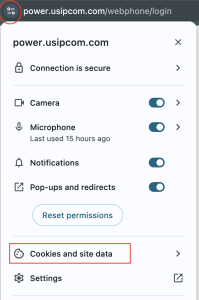
https://power.usipcom.com - Open Site Settings
- Click the lock icon
 to the left of the URL
 - Select Site settings
- Click the lock icon
- Clear Stored Data
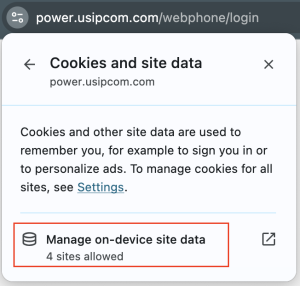
- Click Cookies and site data
- Confirm if prompted
- Click Manage on-device site data
- Confirm if prompted
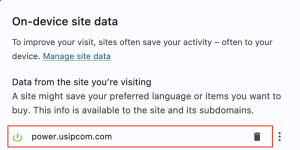
- Click Delete (Trash) for power.usipcom.com
- Confirm if prompted
- Click Reload
- Alternative Method (if needed)
- Press
Ctrl + Shift + Delete(Windows) orCmd + Shift + Delete(Mac) - Set Time range to All time
- Check:
- Cookies and other site data
- Cached images and files
- Click Clear data
- Press
- Close All Chrome Windows
Make sure all Chrome windows and the Power+ app are fully closed. - Relaunch the Power+ App
Open the Power+ Chrome desktop application again.


If issues persist after completing these steps, please contact support.