
Why a Yealink Phone Might Not Get DHCP
USIP
Why a Yealink IP Phone Might Not Get DHCP — and How to Fix It
Clear, step-by-step troubleshooting you can follow on-site or hand to your network team. Includes a network diagram showing the DHCP request/offer/ack flow.
Quick summary
A VoIP phone like a Yealink uses DHCP to obtain an IP address, gateway, DNS, and (optionally) provisioning servers. If DHCP fails, the phone will not boot fully or register with your PBX. Common causes include physical connectivity, VLAN mismatches, DHCP server issues, power problems (PoE), or switch security features blocking DHCP traffic.
Why it happens
| Category | Example cause |
|---|---|
| Network connectivity | Unplugged cable, bad patch cable, or switch port disabled |
| Switch config / VLAN | Voice VLAN mismatch or trunk/access misconfiguration |
| DHCP server | Service down, scope exhausted, or missing helper address |
| Power | Insufficient PoE power or failing injector |
| Security | DHCP Snooping, port security, or MAC filtering blocking offers |
| Phone config / firmware | Static IP configured, corrupted settings, or firmware bug |
Step-by-step troubleshooting
- Check the physical link: verify link LED on both phone and switch. Try a known-good cable and port. If LED is off, confirm the switch port is not administratively shut.
- Verify power: confirm PoE delivers power (or test with the Yealink power adapter). If the phone reboots or shows "low power", test another PoE port or use a PoE injector.
- Test with a laptop: plug a laptop into the same wall jack or switch port. If the laptop receives DHCP and can reach the gateway, network path is likely OK; if not, escalate to the network team.
- Review VLAN settings: Yealink phones often use a voice VLAN. On the phone UI:
Menu → Settings → Advanced → Network → VLAN. Temporarily disable VLAN tagging to verify the device can obtain an address on the native VLAN. On the switch, confirm the port is in the correct voice VLAN or trunk configuration. - Check DHCP server and scopes: ensure the DHCP service is running, that the scope has free addresses, and that the pool matches the phone's VLAN. If you use separate voice VLANs, confirm an ip helper-address (DHCP relay) is configured on the router for that subnet.
- Capture DHCP traffic: use a packet capture on the switch port or mirror/span port. You should see: DHCP Discover → Offer → Request → ACK. If Discover is missing, the phone isn't sending; if Offer is missing, DHCP server or relay issues are likely.
- Check switch security: review DHCP Snooping, port security, or MAC ACLs. Ensure DHCP server-facing interfaces are trusted if using snooping and the phone port is allowed to receive DHCP offers.
- Reset or re-provision the phone: if configuration corruption is suspected, factory-reset the Yealink (hold OK for ~10s or use Menu → Settings → Reset). Boot with DHCP enabled and, if needed, temporarily disconnect provisioning to avoid pushing a bad config.
- Update firmware: if the phone shows strange network behavior, re-flash the latest Yealink firmware (follow vendor instructions). Test again after updating.
Quick fixes by symptom
| Problem | Action |
|---|---|
| No link LED | Replace cable, try another switch port, check port admin state |
| Phone shows "Obtaining IP" | Check DHCP server, VLAN, and DHCP relay |
| Intermittent power or reboots | Test PoE on another port or use power adapter |
| DHCP offers blocked | Disable DHCP snooping or mark DHCP server ports trusted |
| Phone gets wrong VLAN | Disable phone VLAN tagging, fix switch voice VLAN |
Network diagram
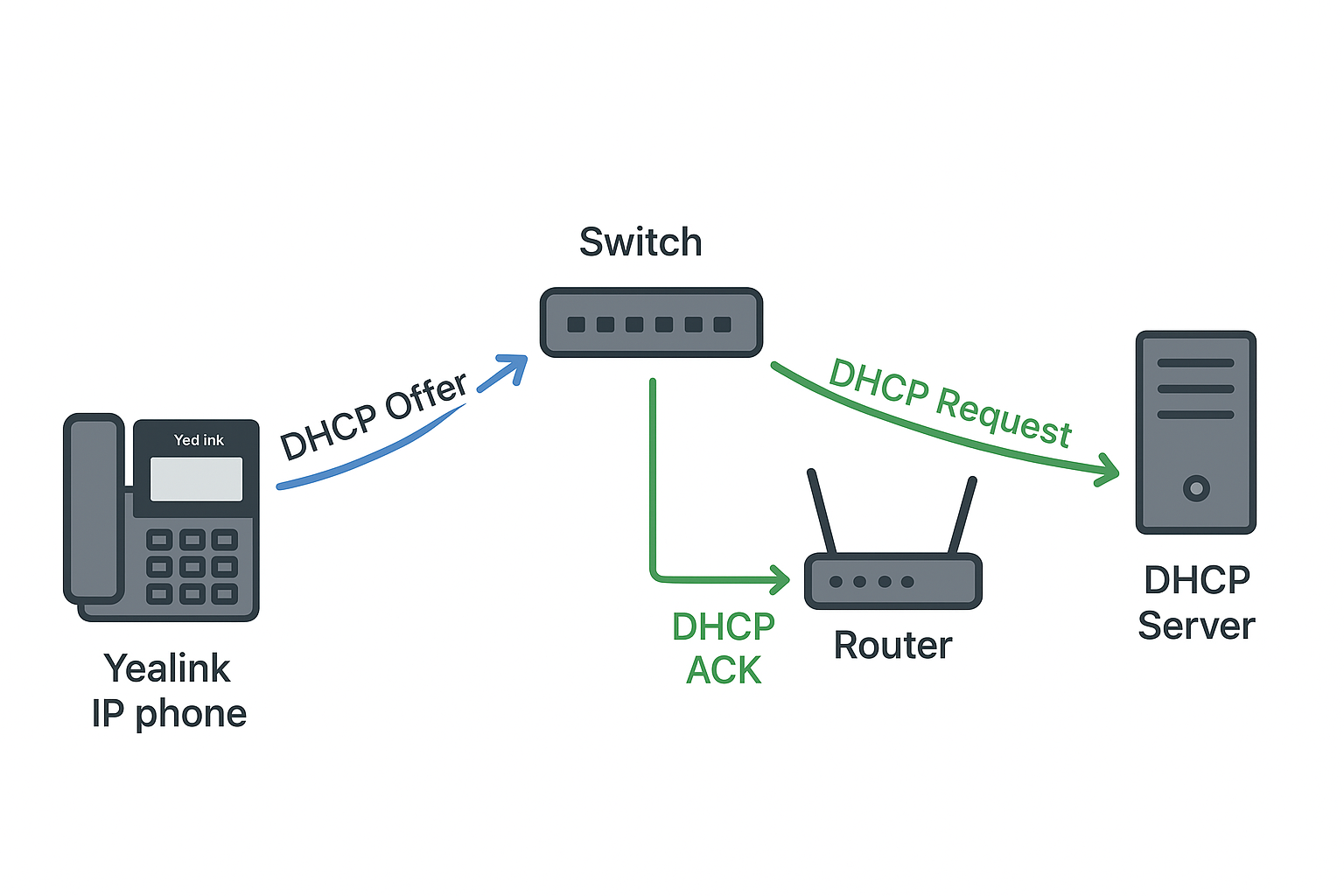
How the DHCP flow works
- Discover: Phone broadcasts DHCP Discover (layer 2 broadcast).
- Offer: DHCP server (or relay) responds with an Offer containing IP and options.
- Request: Phone requests the offered IP.
- Ack: DHCP server acknowledges and leases the IP to the phone.
Admin tips & commands
Commands below are examples — adapt for your vendor and platform.
Cisco (show interface):
show interfaces status

DHCP snooping trusted:
conf t
ip dhcp snooping
ip dhcp snooping vlan 10
interface GigabitEthernet1/0/1
 ip dhcp snooping trust
Linux (view DHCP leases):
# dhcpd.leases location depends on distro
sudo tail -n 60 /var/lib/dhcp/dhcpd.leases