
SnapMobile Logs for Android
How to Send SnapMobile Android Logs to USIP Support
Easily capture and send your SnapMobile app logs so our support team can help resolve your issue quickly.
When and Why to Send Logs
Our support team may request a copy of your SnapMobile Android app logs to help diagnose an issue you’re experiencing. These logs contain technical details that allow us to isolate the cause and provide a faster resolution.
Steps to Capture and Send Logs
-
Open the SnapMobile App
Launch the app on your Android device. -
Access the Menu
At the bottom of the screen, tap the three bars icon on the far right.
-
Select “About”
From the list of options, choose About.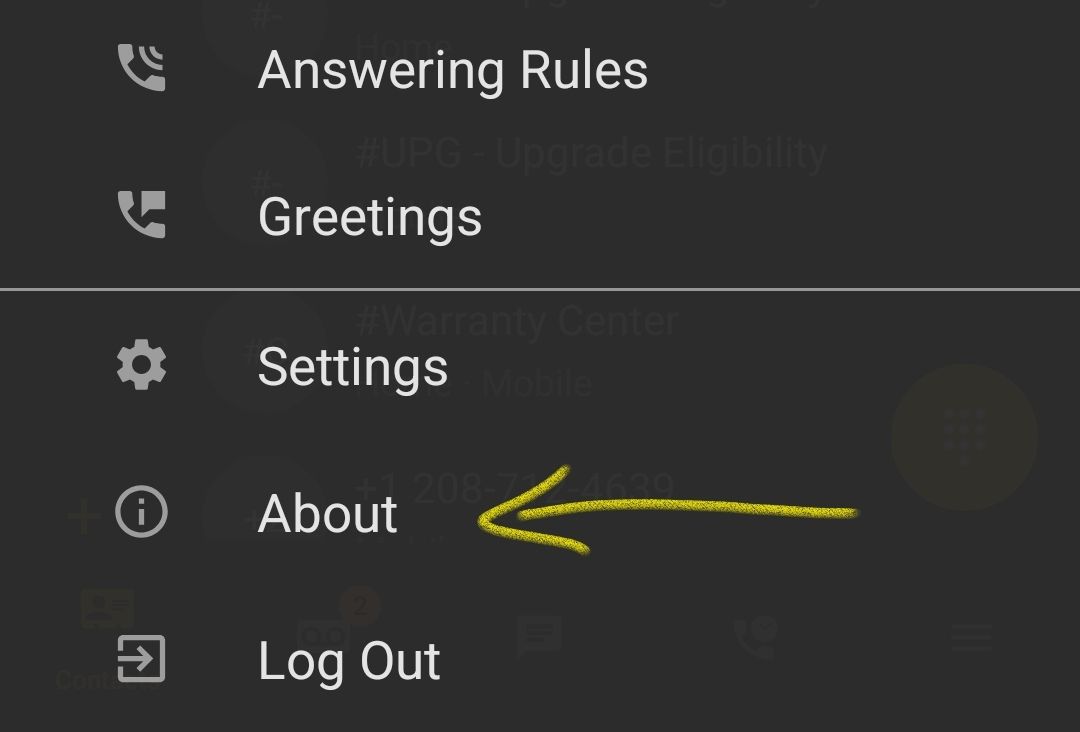
-
Submit Log File
Tap Submit Log File to generate your app logs.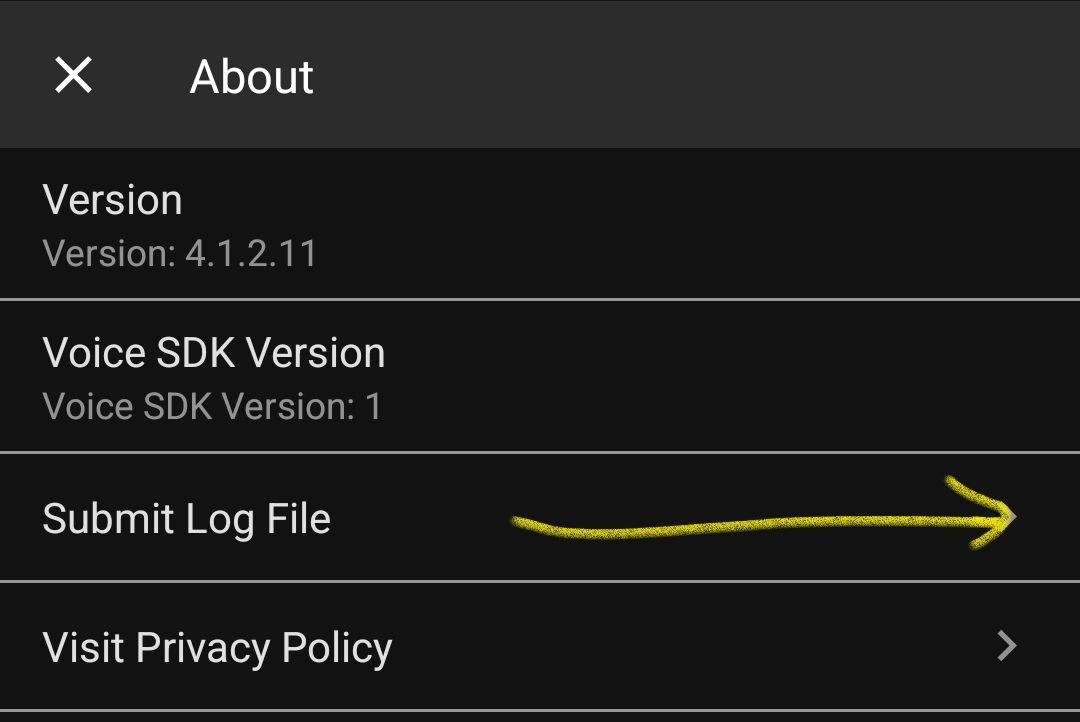
-
Review the File Name
You’ll see a pop-up showing the file name you’re about to send.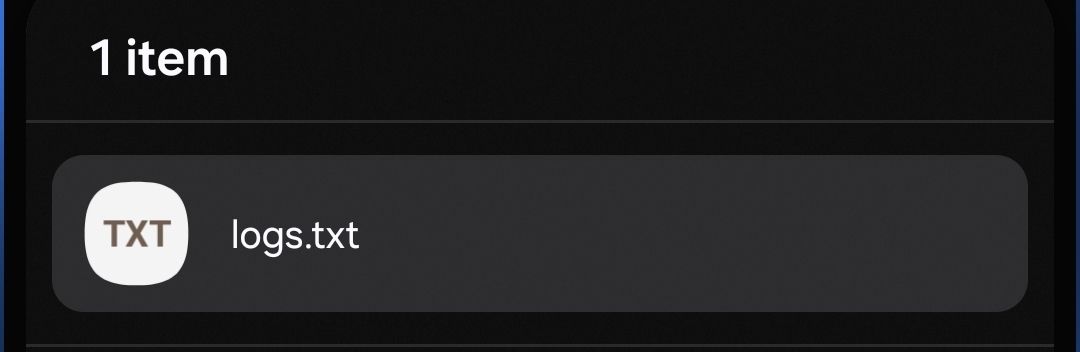
-
Choose a Delivery Method
Select Email to send the file.
Important: Replace the default TO address with:
support@usipcom.com
-
Set the Email Subject
Use this subject format:Example:SNAPMOBILE - yourdomain.usipcom.com - extension - logsSNAPMOBILE - ACC23445.usipcom.com - 1501 - logs -
Include Your Ticket Number
In the email body, reference your open ticket number, for example:
The attached logs are in reference to ticket CS-1003884.
After You Send the Logs
Once we receive your log file, our support team will review it and follow up with you through your open support ticket. Please only send logs when requested by our team for an active case.