
Guides
Why are my calls being marked as SPAM

“Scam Likely” or “Spam” Why this happens and what you can do…
Read MoreUpdating VLAN settings on VVX Polycom (410)
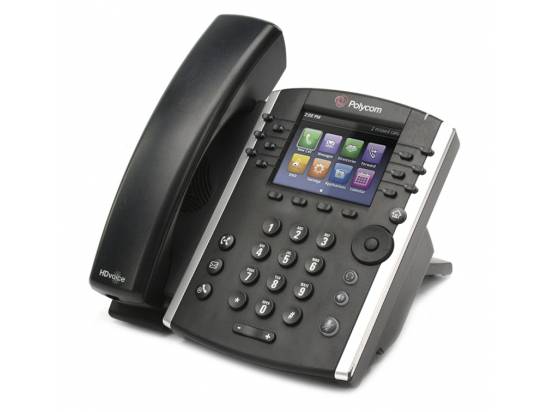
Configure VLAN on Polycom VVX410 Step-by-Step Instructions 1. Access the Admin Menu…
Read MoreSnapMobile Logs for Android

How to Send SnapMobile Android Logs to USIP Support Easily capture and…
Read MoreHow To Upgrade And Provision the Grandstream GXP IP Phone

The GXP1610/GXP1615/GXP1620/GXP1625/GXP1628/GXP1630 can be upgraded via TFTP, HTTP/HTTPS, FTP or FTPS by configuring the URL/IP Address for the TFTP/HTTP/HTTPS/FTP/FTPS server and selecting a download method. Configure a valid URL for TFTP or HTTP/HTTPS or FTP/FTPS; the server name can be FQDN or IP address.
Read MoreHow to Default Grandstream IP Phones to Factory Defaults
Please follow the instructions below to reset the phone:
Restore to Factory Default via the LCD Menu
Read MoreHow to Provision the Yealink T46U for USIP Hosted VoIP
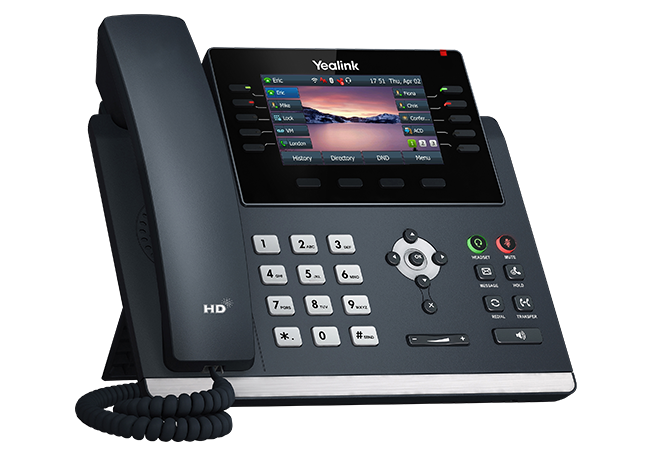
Voicemail Tree
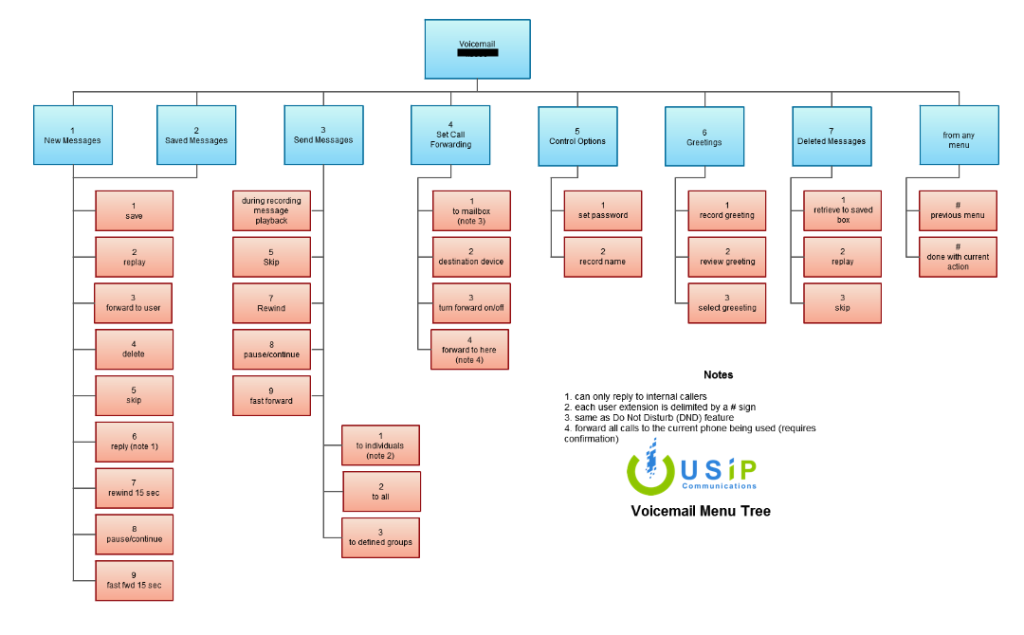
Wanna know how to navigate your voicemail like a pro?
Read MoreAdmin Portal Guide

Office Manager GuideWelcome to Office Manager onboarding training. In this training, we…
Read MoreVoice Web Client Overview

Quick video showing the included capabilities of the Web Client phone that…
Read MorePower User Portal Overview

Another informative video to give the basic overview of our Hosted Communications…
Read MorePower Admin Portal Overview
Here is a short video to give the basic overview of our…
Read MorePower VoIP Guides

Welcome to the Power PBX User Guide. Your Power PBX combines the best in traditional
phone system features with modern Internet Protocol (IP) capabilities. In this guide, you will
learn how to perform many common tasks on your phone, as well as make full use of your
web portal.